A great booking experience should feel simple for your clients and organized for your team. The good news: a few smart setup choices can save time, reduce back-and-forth, and make your business look wonderfully on top of things.
Here are practical tips for running bookings smoothly, plus exactly how to put them into action in Breely.
Start with clear availability
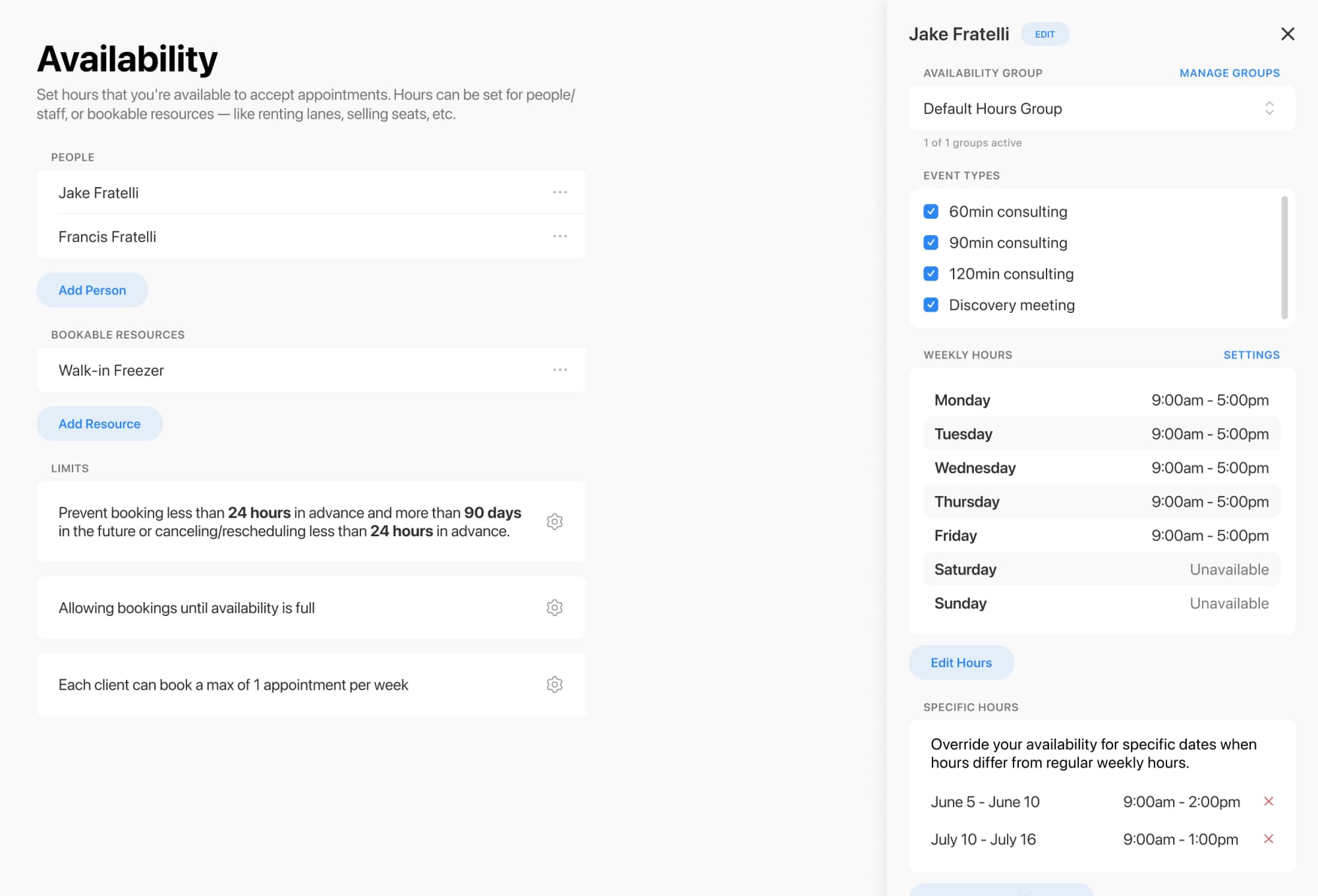
If clients can only book at the right times, everything gets easier. Set reliable weekly hours, then fine-tune as needed for special days, specific services, or different team members. Breely supports regular weekly hours, override hours for specific dates, different hours by day, and even event-type-specific availability.
Best practices for businesses
- Keep your weekly hours consistent when possible
- Use special-date overrides for holidays, time off, or one-off schedule changes
- Create different availability for different services if they require different workflows
- Add scheduling limits so clients can only book, edit, or cancel within the windows you allow
How to do it in Breely
- Open your Breely scheduling settings
- Set your regular weekly hours
- Add override hours for specific dates when your schedule changes
- If needed, set different availability by event type or for each staff member
- Use scheduling limits to control when appointments can be booked, edited, or canceled
Build event types that make booking obvious
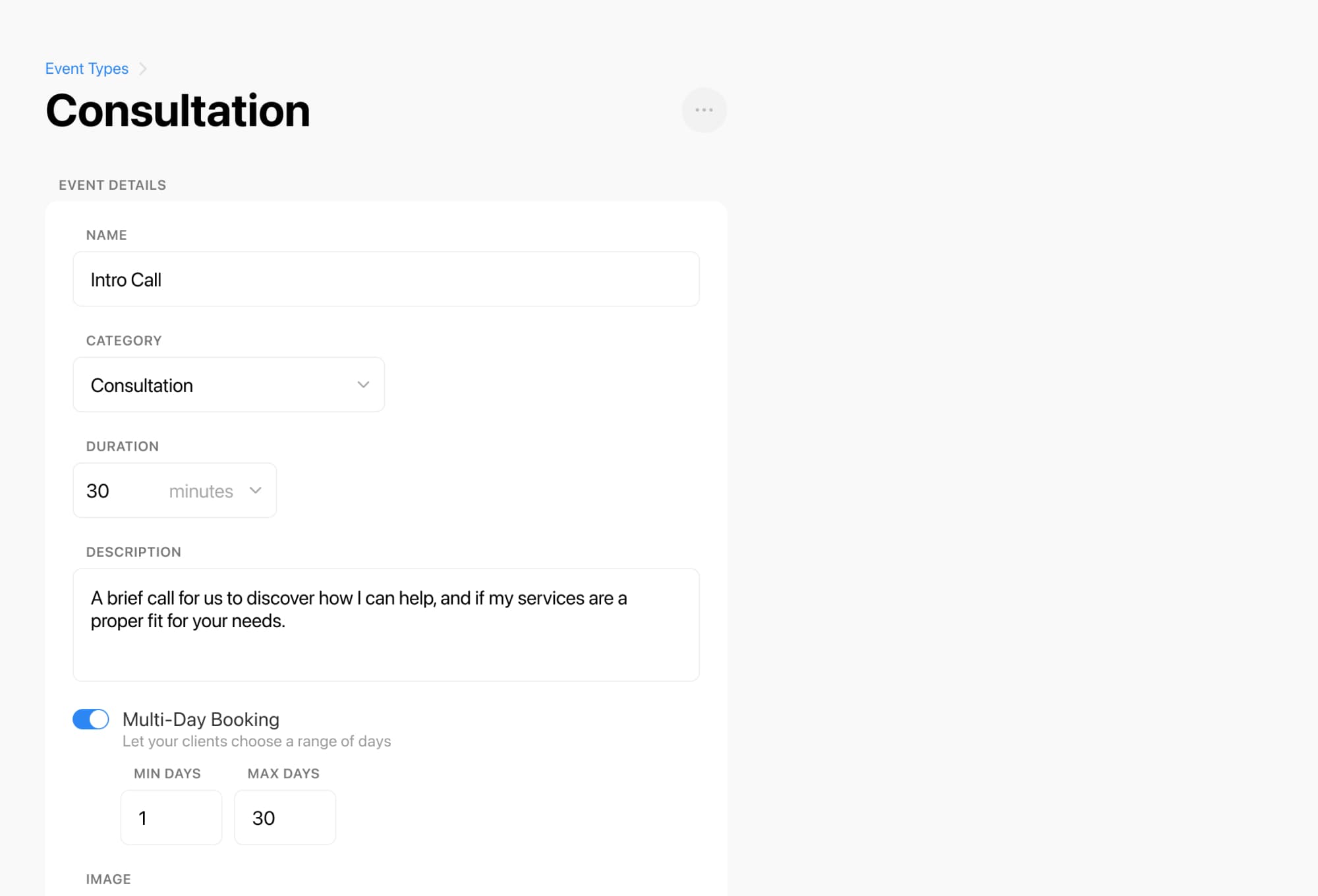
When your services are clearly named and structured, clients spend less time guessing and more time booking. Breely lets you set up distinct event types so each service can have its own setup and booking flow. You can also share direct links to a specific event type when needed.
Best practices for businesses
- Use simple, client-friendly service names
- Keep service options focused so clients are not overwhelmed
- Create separate event types for services with different timing or availability
- Share direct links to the exact service you want to promote
How to do it in Breely
- Go to your event type setup area
- Create a service for each appointment or offering
- Adjust the availability and booking details for that service
- Share the full booking form or a direct link to the specific event type from the form’s Sharing options
A good intake form helps you prepare before the appointment instead of playing detective afterward. Breely forms can collect general client details or booking-specific information, and can even use logic to skip or rearrange questions based on answers.
Best practices for businesses
- Only ask for information you will actually use
- Put must-have questions early in the process
- Use conditional logic to keep forms short and relevant
- Match the form to the service, not the other way around
How to do it in Breely
- Open Forms
- Select the form you want to edit or create a new one
- Add sections and questions for the details you need
- Use form logic to show, skip, or rearrange questions as appropriate
- In the form’s Sharing tab, grab the link or embed code to place the form on your website
If you want to embed a Breely form directly on your website, Breely provides this in Forms → Your desired form → Share → Embed in Webpage.

Make reporting part of your routine
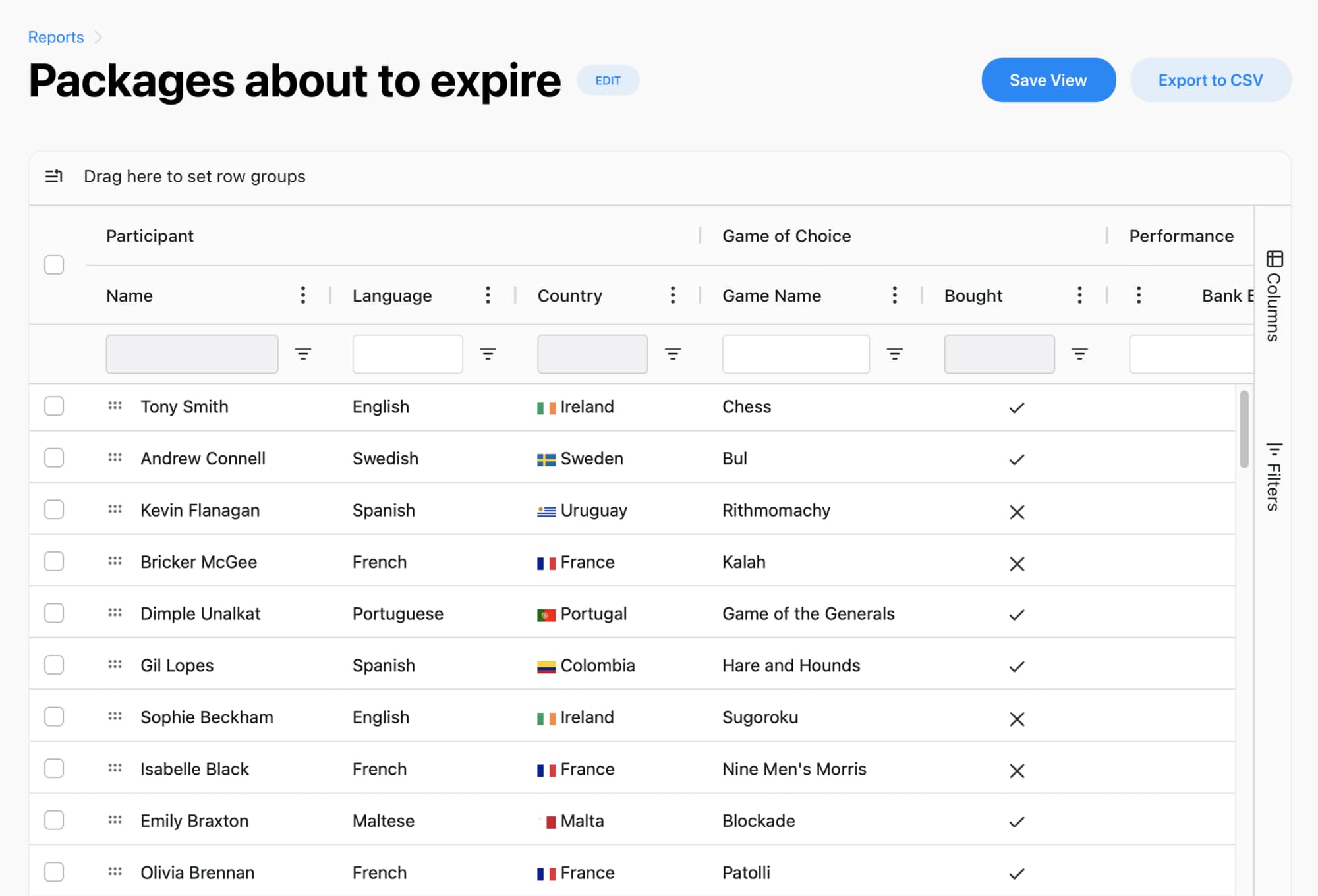
If you are not reviewing what gets booked, sold, or submitted, you are basically flying by vibes alone. Breely’s Reports section gives you an at-a-glance view of bookings, clients, forms, classes, and revenue, with filters, grouping, and export options.
Set up smarter scheduling in Breely
Online booking, reminders, and payments — free to start
Best practices for businesses
- Review bookings and revenue regularly
- Track which services perform best
- Group data by event type, client, or form to spot patterns
- Save your favorite report views so your team can reuse them quickly
How to do it in Breely
- Go to Reports
- Click Create Report
- Start from scratch or choose a template like All Clients, Revenue, or Revenue per event type
- Use filters, sorting, and grouping to shape the view you need
- Click Save View once the report is set up the way you like it
Keep the booking experience connected to your website
The smoother the journey, the better the conversion. Breely lets you add your booking form directly to your website, use a direct booking link, or point visitors to a specific event type. Embedding the form can also make tracking easier.
Best practices for businesses
- Keep visitors on your website when possible
- Use direct links in emails, social posts, and service pages
- Track form submissions so you know what is working
- Make the path from “I’m interested” to “I’m booked” delightfully short
How to do it in Breely
- Open the form you want to share
- Use the Sharing tab to copy a direct link or embed code
- Add the form to your website for a more seamless client experience
- If you use Google Tag Manager, you can track submissions with the
breely_form_submitted custom event after embedding the form
A thoughtful Breely setup can help your business look polished, stay organized, and make booking feel easy from the very first click. If you are ready to clean up your scheduling flow, now is a great time to review your availability, tighten your forms, and publish a booking experience your clients will actually enjoy.
Set up smarter scheduling in Breely
Online booking, reminders, and payments — free to start